Shadowrocket
Import & First Connection
Start with your connection details, then choose a mode, connect, and verify the result. This official guide covers iPhone and iPad, following the first-time setup flow and explaining what to check at each step.
- Add Server
- Subscribe
- Global Routing
- Connectivity Test
Adding a single server and importing a subscription are two different ways to provide connection details; you don’t need to do both. If you already have a subscription link, skip to step 2. If you have complete server details, start with step 1, then choose a mode.
Add Server: Enter existing server details
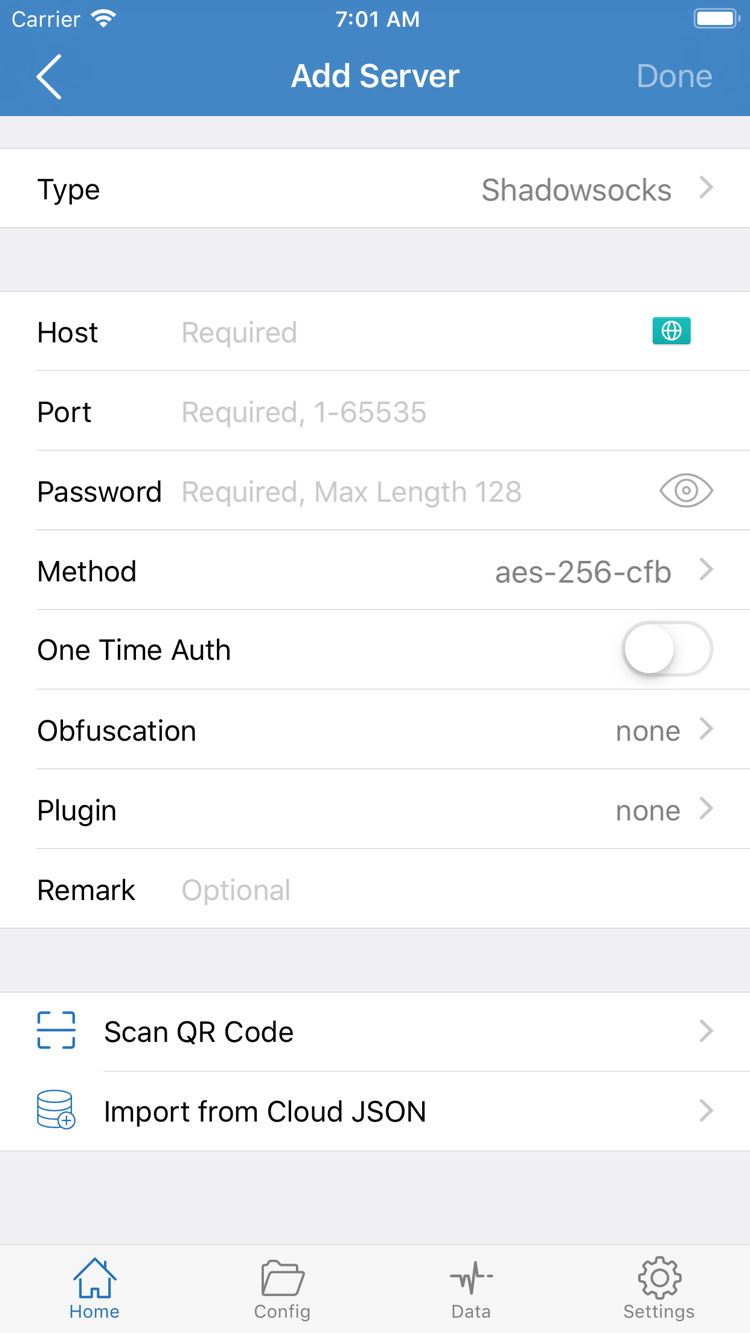
Open Shadowrocket and go to Home. Find Add Server in the SERVER section. On the next screen, check Type before entering an address. Type determines which fields appear: authentication and connection settings vary by protocol, so don’t choose based on the server name alone. Select the type that matches your existing details, such as Shadowsocks, VMess, VLESS, or Trojan. Don’t switch protocols just to reduce the number of fields.
Next, enter Host and Port. Host is the server’s domain name or address; Port is the port that service listens on. Both must come from the same set of connection details. The example example.com is for format illustration only. Don’t paste a full subscription link into Host or enter a link’s path or query parameters as the port. After pasting, check for leading or trailing spaces, line breaks, and punctuation that your keyboard may have changed.
Fill in the authentication details required by the selected Type. Password and Method shown in the screenshot apply to that particular type; they aren’t shared settings for every protocol. If your details also specify TLS, Server Name, or other transport options, match them exactly. If you’re unsure about a value, check the original details instead of disabling verification or guessing at an encryption method.
If your details are provided as a QR code, use Scan QR Code to import them, then return to the edit screen to verify Type, Host, and Port. Import from Cloud JSON is for a specific configuration format; don’t use an arbitrary webpage URL there. Save and return to Home to confirm the new entry appears in the SERVER list. Saving the entry alone does not mean the connection is working.
Subscribe: Import your subscription link
If you have a subscription link that updates your server list, use Subscribe instead of entering each server manually. Copy the complete link from your service provider, then go to Add Server in Home, set Type to Subscribe, and paste it into the URL field. Add a label that will help you recognize it. Field locations depend on what the app currently displays. Before saving, make sure you haven’t entered the URL of an information, account, or order page instead of the subscription link.
A subscription URL may include query parameters used to identify your account, so keep the entire link intact. Missing the last character, adding a line break, or deleting parameters that seem unnecessary can prevent the server list from loading. Treat the link as private information. If you need help, share the error message and where the process failed, not the full URL. You don’t need to post the subscription contents on another website.
After saving, update the subscription and wait for it to finish loading. Then return to Home and check whether servers appear in the relevant group. Two separate things matter: whether entries were retrieved successfully and whether they can connect. A successful update means the contents could be read; it doesn’t mean every server can connect. If the list is empty, the connection switch may still be working—first check the link, subscription status, and whether your current network can reach the URL.
For your first setup, update the subscription manually once and confirm the contents look right before considering automatic updates. Creating the same subscription again usually won’t fix a problem with the link itself and may leave you with confusing duplicate groups. If an update fails, keep the existing entries and original link, note the error, and follow the subscription parsing and empty-list troubleshooting steps. For automatic updates, see the subscription update guide.
Global Routing: Understand the three modes
Return to Home, open Global Routing, and check the current selection. The three modes are Config, Proxy, and Direct. They determine how requests are routed, not which protocol the server uses. Adding a server doesn’t replace this step: the same server may handle only some requests—or none of the current requests—depending on the selected mode.
| Mode | Purpose | Check before use |
|---|---|---|
| Config | Choose a policy based on the rules in the current configuration. | Check which Config and Rule are active. |
| Proxy | Route requests through the proxy to check whether the selected server is available. | Confirm the intended server is selected and check for exceptions in the configuration. |
| Direct | Use a direct connection. | A reachable destination does not prove the proxy is working. |
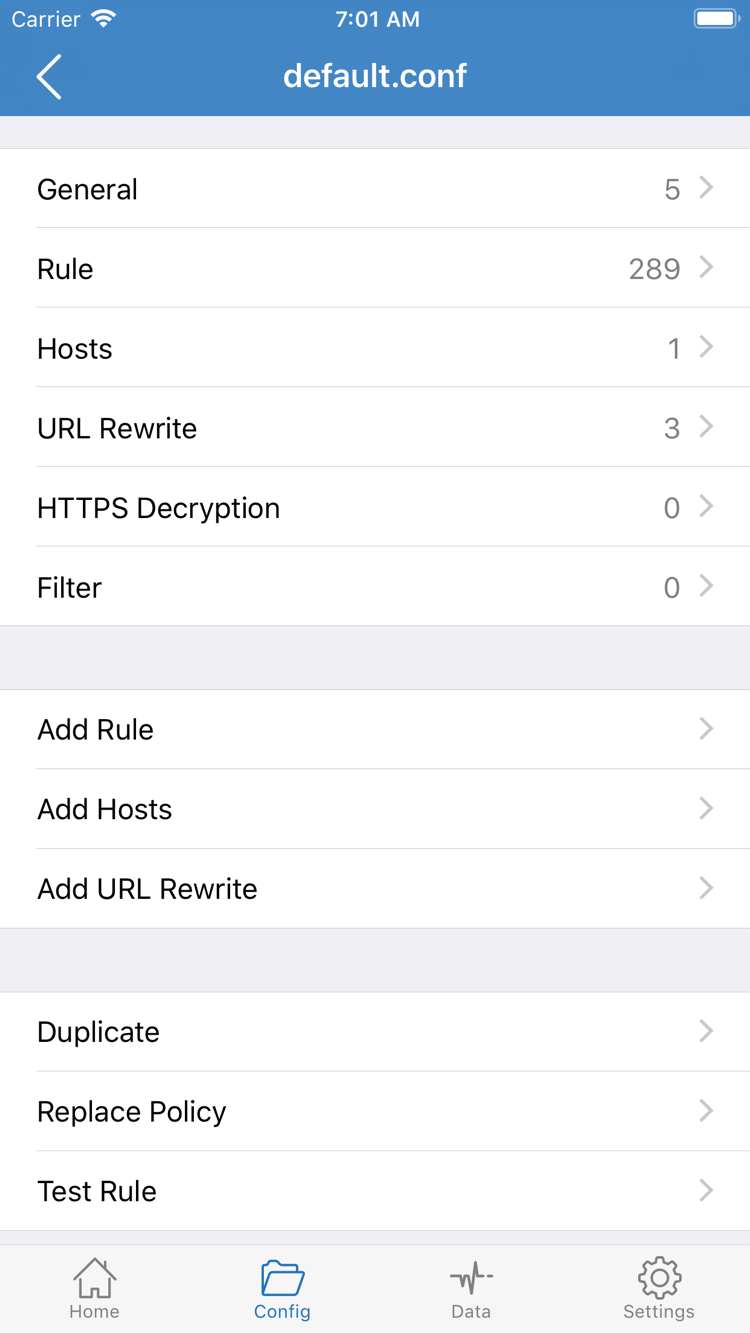
For rule-based everyday use, select Config and check which configuration file is active in Config. Its edit screen may show sections such as General, Rule, and Hosts; Rule determines the matching conditions and policies. Opening a file to view it doesn’t mean you’ve switched to that configuration—return to the list and check which one is marked as active. For your first setup, keep the existing configuration and don’t edit multiple sections at once.
For example, DOMAIN-SUFFIX,example.com,PROXY routes requests matching that domain suffix through PROXY. FINAL,PROXY sets PROXY as the final choice when no earlier rule matches. These examples explain the syntax; they aren’t a complete configuration for every use case. Rule order and the selected policy both affect the result, so a keyword alone doesn’t prove a request will use the proxy.
To distinguish a server connection issue from a rule-selection issue, note the current mode, temporarily switch to Proxy for a comparison test, then restore the original setting. Direct is useful for checking direct access, but it can’t verify that the server is working. For more on matching order and modes, see Global Routing settings and the rule troubleshooting section. For now, complete one connection you can verify.
Home: Select a server and connect
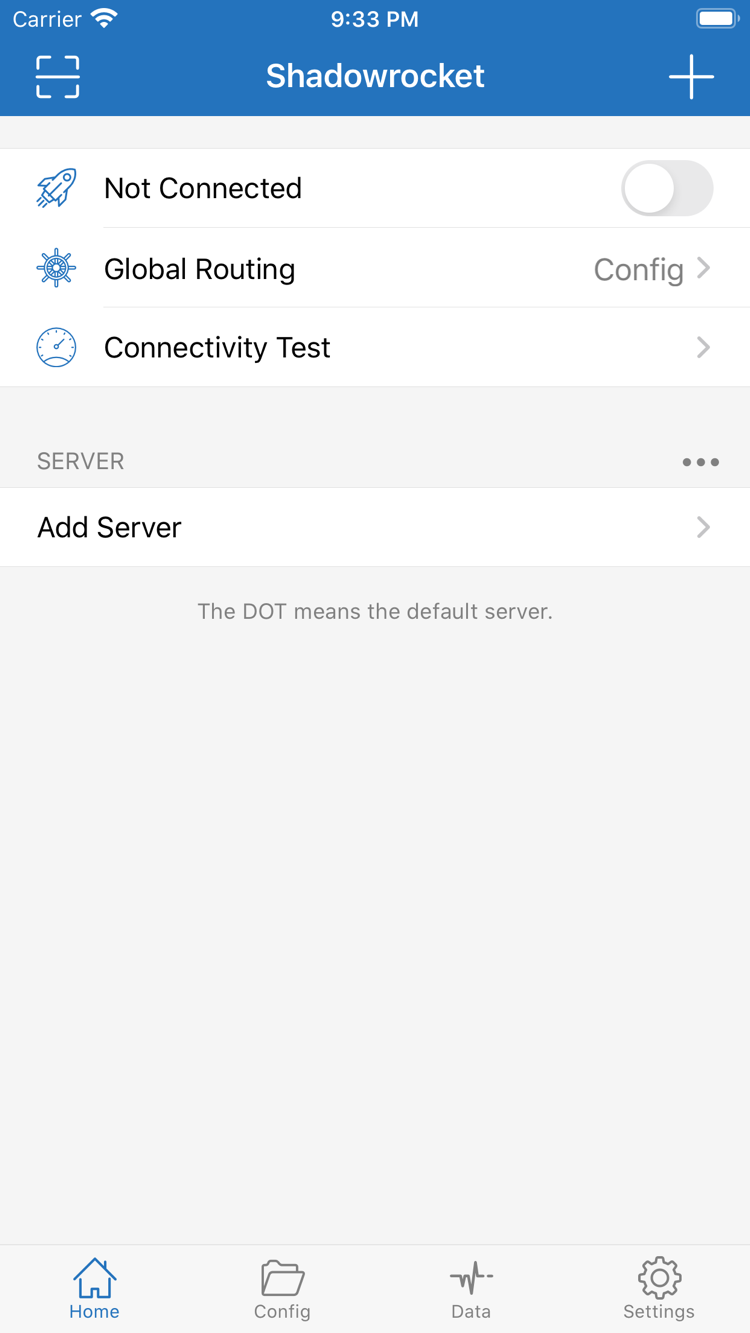
Return to Home, select the server you want to use in the SERVER section, and check the dot beside its entry. Opening the edit screen and selecting the active server are different actions; viewing the settings doesn’t select it. If you imported multiple groups, identify which group the entry belongs to and keep the same server selected during subsequent tests so you can compare results.
After checking Global Routing, turn on the connection switch at the top of Home. The first time you connect, the system may ask permission to let Shadowrocket add a VPN configuration. Confirm the request is from the app you’re using, then follow the system prompts and authenticate your device. This permission sets up the network configuration the app needs; it doesn’t replace your server password or add a subscription to your account.
Return to Shadowrocket and check whether the status at the top still says Not Connected and whether the switch remains on. If you canceled the system authorization, complete that step before changing server details. If the switch turns off right after you turn it on, note the message and when it happens: before authorization, after authorization, or when you start accessing a destination. Each stage points to different checks.
A switch that stays on and a reachable destination are two different things. The connection status indicates whether the local connection flow was established; it doesn’t confirm that server authentication, DNS, or every rule is correct. Keep the mode and server unchanged for now, and verify the connection in the next step. Avoid changing settings repeatedly before you have results to compare.
Connectivity Test: Check the connection and access separately
Run Connectivity Test from Home, wait for it to finish, then review the result for the selected server. The test method affects what is checked, so keep the same Test Method when comparing results. A successful test means you got a response under those test conditions; it doesn’t confirm every connection in the target app works. A timeout alone doesn’t tell you whether authentication failed, the server is unreachable, or the test destination didn’t respond.
Next, open the destination website or app and perform a specific action, such as reloading a page, rather than checking content that may already be cached. Compare two destinations you use regularly and note which work and which don’t. If only one destination fails in Config mode, check the rule matched by that request before changing all your servers.
To confirm the route, check the connection details or logs available in the app and verify the destination domain and final policy. PROXY, DIRECT, and REJECT indicate proxy, direct, and reject policies, respectively. A DIRECT request may still connect normally even when the local connection switch is on. If a request matches REJECT, first check whether that rule is intended; a rule-rejected request doesn’t by itself mean the server has failed.
Record results in this order: server test responds → system connection stays active → destination works → policy is as expected. If the first three pass but the policy is wrong, revisit Global Routing and Config. If the test and destination both fail, check your connection details and network conditions next. Change one variable at a time and test again before keeping a change, so you can identify what made a difference.
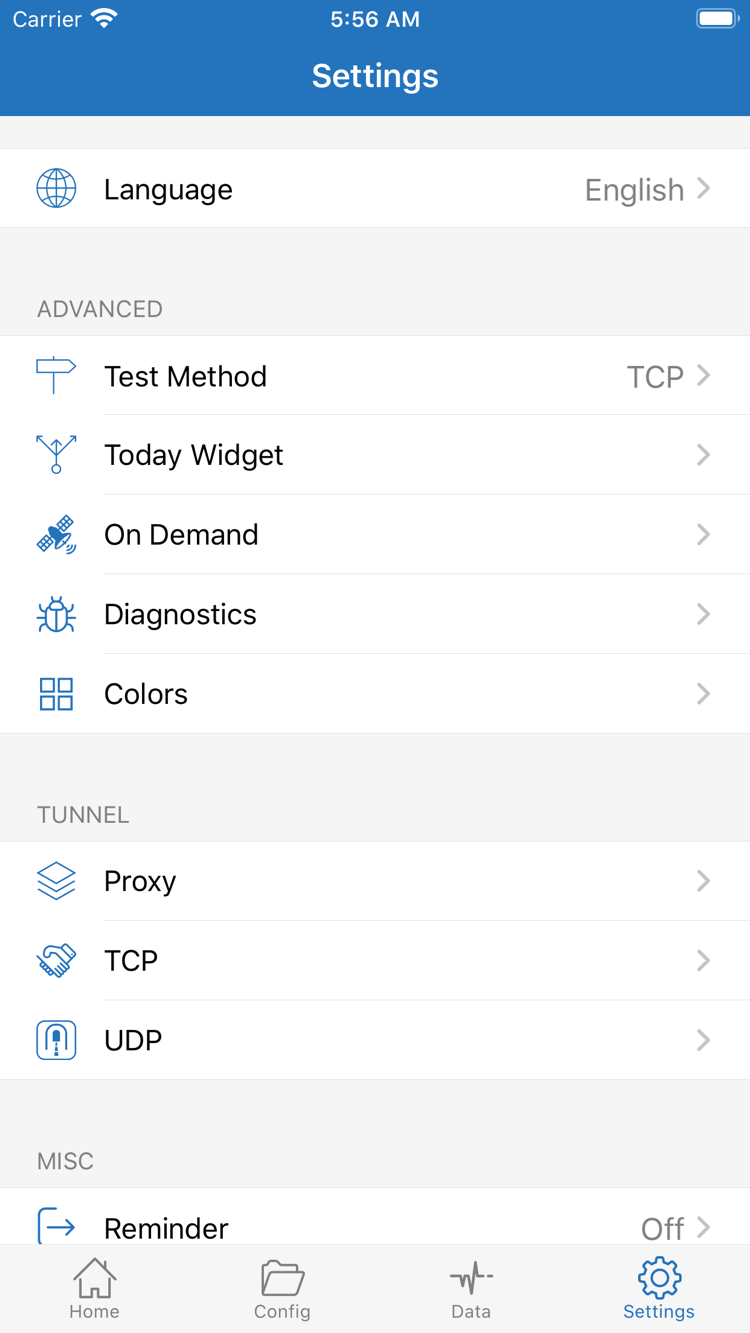
Settings: Check issues by stage
Import failed: Check that your details are complete
If a subscription fails to parse or the list is empty after saving, return to the subscription edit screen and check that the link is complete. Then confirm your service is active and that your current network can reach the subscription URL. For a single server, compare Type, Host, Port, and authentication details with the original. Don’t start by changing DNS, rules, or On Demand: until a usable entry is confirmed, those settings can’t fix missing connection details.
Can’t connect: Check the selection and system authorization
If the entry is already there but the connection stops as soon as you turn it on, first check the selected marker in Home and confirm that the system VPN configuration has been authorized. Then review the app’s message. Trying a different network can help as a comparison, but keep the same server and settings. Don’t recreate the subscription, change the port, and switch modes all at once, or it will be hard to tell what caused the result.
Test and access results differ: Check Test Method and DNS
In Settings, check Test Method and make sure it matches what you’re trying to verify. Some tests cover only part of the connection, so compare them with actual access. If domains fail to resolve while other connections work, check DNS. Record the current values and Config first; don’t add multiple DNS servers at once. For more on choosing between system DNS, custom DNS, and DNS over HTTPS, see the DNS settings guide.
Connection behavior is unexpected: Check On Demand
If the connection starts automatically under certain network conditions, or behaves differently from the manual switch, check On Demand and its conditions in Settings. For initial troubleshooting, note its current state and keep conditions stable while testing a manual connection. Then decide whether to change it. Defaults for On Demand depend on what the app currently displays; don’t copy someone else’s settings just because they differ.
Still not working: Keep only essential diagnostic details
If you need to investigate further, check Diagnostics or the relevant logs available in the app. Start by recording when it happened, what you did, the error message, the Type in use, and the final policy. Before sharing, hide subscription links, server authentication details, and unrelated browsing records. Logs may include destination domains and addresses, so don’t publish them in full.
If you find settings that work, restore normal use first, then review any options you want to optimize one at a time. Settings such as Proxy, TCP, and UDP affect more advanced connection behavior; they don’t all need to be changed for a first connection. For details and guidance on values, continue to the Settings reference. To repeat the setup, return to the Add Server step in this guide and review how to add your connection details.